

2026/1/23 Update
Following a two-to-three-month code review process in PR#8018, luci-app-tailscale-community has been officially merged into the OpenWrt upstream LuCI repository. Future releases will allow users to install this plugin directly from the official software feeds without any additional steps.
On a personal note, this is my first time successfully merging a personal project into the OpenWrt mainline, and I feel deeply honored!
Project Repository
https://github.com/tokisaki-galaxy/luci-app-tailscale-community
Introduction
Tailscale, a zero-config VPN based on WireGuard, greatly simplifies secure connectivity between devices. While managing Tailscale via the command line on an OpenWrt router is functional, it is far less intuitive and efficient than a graphical interface. To address this, I developed luci-app-tailscale-community, a management plugin specifically designed for the OpenWrt LuCI interface.
luci-app-tailscale-community aims to provide a natively integrated, full-featured web interface that allows users to easily monitor their Tailscale network status and adjust configurations without ever needing to log in via SSH.
Core Features at a Glance
The plugin seamlessly integrates Tailscale’s core functionality into the LuCI “Services” menu, divided into two main sections: “Status” and “Settings.”
1. Status Dashboard
Provides instant insights into the health of your Tailscale network:
- Service Status: Clearly indicates whether the
tailscaleddaemon is “Running” or “Not Running.” - Device IP: Displays the current device’s Tailscale IPv4 and IPv6 addresses.
- Network Device List: A detailed table listing all peers in the Tailnet, including:
- Online Status: Color-coded indicators for online/offline nodes.
- Hostname & DNS: Displays the device hostname and full Tailscale DNS name.
- Connection Type: Specifies whether the connection is “Direct” or via “Relay,” including relay server info.
- OS & Tailscale IP: Operating system and assigned internal IP.
- Last Seen: For offline devices, shows the last time they were active.
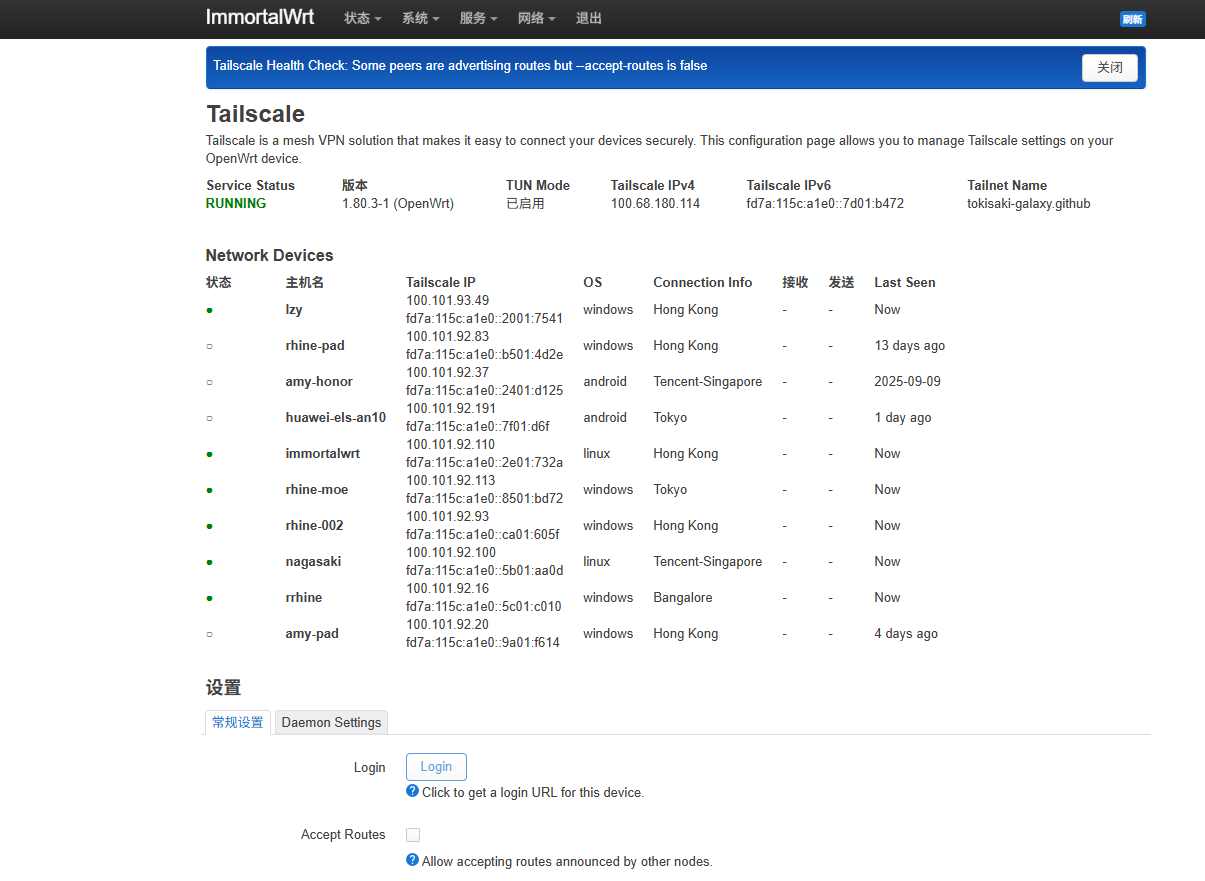
2. Powerful Settings Management
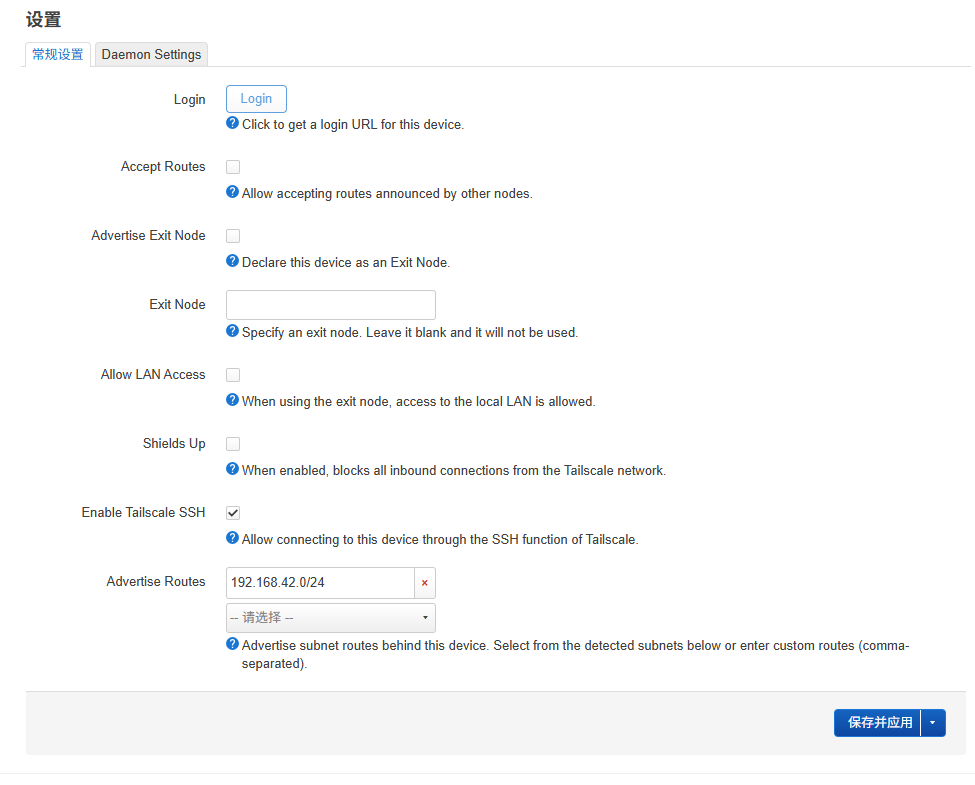
The settings page uses two tabs to distinguish between immediate node settings and daemon settings that require a service restart.
-
Node Settings These settings are implemented by calling the
tailscale setcommand. Changes take effect immediately without service interruption. Supported options include:- Accept/Advertise Routes
- Advertise as Exit Node / Use Exit Node
- Enable SNAT for subnet routing
- Enable built-in SSH server
- Toggle
Shields Upmode for enhanced security - Set a custom hostname
-
Daemon Environment Settings These advanced options are implemented by modifying the environment variables used when
tailscaledstarts, thus requiring a service restart after saving.- Custom MTU: Resolve connectivity issues in specific network environments.
- Reduce Memory Usage: Optimized for memory-constrained devices. By setting the
GOGC=10environment variable, it trades a small amount of CPU overhead for a significantly lower memory footprint.
Technical Implementation
luci-app-tailscale-community is primarily written in Lua and follows the LuCI MVC (Model-View-Controller) architecture.
- Data Model:
luasrc/model/tailscale_data.luaacts as the core data loader. It fetches real-time status by executingtailscale status --jsonandtailscale ip, and parses/etc/tailscale/tailscaled.statefor detailed runtime configurations. - CBI Interface: The
luasrc/model/cbi/tailscale_status.luaandtailscale_settings.luafiles utilize LuCI’s CBI (Configuration Binding Interface) framework to build the UI, linking frontend options to backend configurations and commands. - Config Application: For daemon settings, the plugin dynamically creates or updates a shell script located in
/etc/profile.d/to ensure the correct environment variables are loaded when thetailscaledservice starts.
Installation and Usage
The installation process is straightforward:
- Prerequisites: Ensure your OpenWrt device has
tailscaleandcoreutils-base64installed.Terminal window opkg updateopkg install tailscale coreutils-base64 - Install the Plugin: Download the latest
.ipkpackage from the GitHub Release page, upload it to your router, and install it usingopkg.Terminal window opkg install luci-app-tailscale-community_*.ipk
(Alternatively, you can download build artifacts from the project’s GitHub Actions.)
Once installed, refresh the LuCI page to find the “Tailscale” entry under the “Services” menu.