

Welcome to the Cmd Markdown Editor
We understand that you need a more convenient and efficient tool to record your thoughts, organize notes and knowledge, and share the value they carry with others. Cmd Markdown is our answer — we provide a more professional tool for recording thoughts and sharing knowledge. With Cmd Markdown you can:
- Organize knowledge and study notes
- Publish diaries, essays, and anything you see or think
- Write and publish technical articles (with code support)
- Write and publish academic papers (with LaTeX formula support)
Besides the online version of Cmd Markdown you are currently viewing, you can also download it from the following website:
Windows/Mac/Linux Cross-Platform Client
Please keep this welcome page and user guide for Cmd Markdown. To write a new article, click the New Article button on the right side of the top toolbar, or use the shortcut
Ctrl+Alt+N.
What is Markdown
Markdown is a plain-text markup language that is easy to remember and write. Users can use these markup symbols to produce highly expressive documents with minimal input effort, such as the document you are reading right now. It uses simple symbols to mark different headings, separate paragraphs, and make certain text bold or italic. Even better, it can also
1. Create a Todo list Todo List
- Support exporting articles in PDF format
- Improve the Cmd rendering algorithm and use partial rendering technology to improve rendering efficiency
- Add the Todo list feature
- Fix the LaTeX formula rendering issue
- Add LaTeX formula numbering support
2. Write a mass-energy equivalence formula1
3. Highlight a piece of code2
@requires_authorizationclass SomeClass: pass
if __name__ == '__main__': # A comment print 'hello world'4. Efficiently draw a flow chart
st=>start: Startop=>operation: Your Operationcond=>condition: Yes or No?e=>end
st->op->condcond(yes)->econd(no)->op5. Efficiently draw a sequence diagram
Alice->Bob: Hello Bob, how are you?Note right of Bob: Bob thinksBob-->Alice: I am good thanks!6. Efficiently draw a Gantt chart
title 项目开发流程 section 项目确定 需求分析 :a1, 2016-06-22, 3d 可行性报告 :after a1, 5d 概念验证 : 5d section 项目实施 概要设计 :2016-07-05 , 5d 详细设计 :2016-07-08, 10d 编码 :2016-07-15, 10d 测试 :2016-07-22, 5d section 发布验收 发布: 2d 验收: 3d7. Draw tables
| Item | Price | Quantity |
|---|---|---|
| Computer | $1600 | 5 |
| Phone | $12 | 12 |
| Pipeline | $1 | 234 |
8. More detailed syntax reference
For more detailed syntax reference, you can check out our prepared Cmd Markdown Concise Syntax Manual. Advanced users can refer to the Cmd Markdown Advanced Syntax Manual to learn more advanced features.
In short, unlike other what-you-see-is-what-you-get editors: you only need to use the keyboard to focus on writing text content, and you can generate print-quality typesetting without the hassle of switching back and forth between the keyboard and toolbar to adjust content and formatting. Markdown strikes a balance between smooth writing and a print-quality reading experience. It has now become the de facto writing format of GitHub, the world’s largest tech-sharing website, and StackOverflow, the tech Q&A website.
What is Cmd Markdown
You can use many tools to write Markdown, but Cmd Markdown is the best Markdown tool we know of on this planet — without exception :) Because we believe in the power of words, like you, we have an ultimate pursuit for smooth writing, sharing thoughts and knowledge, and the reading experience. We have integrated our response to these demands into Cmd Markdown, and improved the experience of this tool once, twice, three times, and countless times, eventually evolving it into an online platform for editing/publishing/reading Markdown — you can manage your text here anywhere, on any system/device.
1. Real-time synchronized preview
We split the Cmd Markdown main interface in two: the editing area on the left and the preview area on the right. Actions in the editing area are rendered to the preview area in real time so you can see the final layout. What’s more, if you drag the scrollbar in one area, we use a clever algorithm to sync the scrollbar of the other area to the equivalent position. Pretty cool!
2. Editing toolbar
Maybe you are still a beginner in Markdown syntax. Until you are fully familiar with it, we have placed a toolbar at the top of the editing area, as shown below. You can use the mouse to adjust formatting on the toolbar, but we still encourage you to use keyboard shortcuts to format text for smoother writing.

3. Editing mode
Edit text in a completely distraction-free way: click the expand button on the far right of the editing toolbar or press Ctrl + M to switch Cmd Markdown into a standalone editing mode. This is an extremely minimalist writing environment where all potentially distracting elements have been removed. Super clean!
4. Real-time cloud documents
To ensure data security, Cmd Markdown saves every keystroke to the cloud, and shows a 已保存 (Saved) indicator on the far right of the editing toolbar. No need to worry about browser crashes, machine power loss, earthquakes, or tsunamis — you can close the browser or machine at any time while editing, and continue writing the next time you return to Cmd Markdown.
5. Offline mode
It’s perfectly safe to record text even when your network connection is unstable! If your computer suddenly loses its network connection while you are writing, Cmd Markdown intelligently switches to offline mode, saving the text you type afterward locally, and transmits it to the cloud when the network is restored. Even if you close the browser or computer before the network comes back, there’s no problem — the next time you open Cmd Markdown, it will remind you to transmit the offline-saved text to the cloud. In short, we do our best to keep your text safe.
6. Management toolbar
To make it easier to manage your documents, a management toolbar is placed at the top of the preview area, as shown below:

Through the management toolbar you can:
Publish: generate a permanent link for the current document and publish/share it online New: start writing a new document Delete: delete the current document Export: convert the current document to Markdown text or HTML format and export it locally List: view and manage all new and previous documents here Mode: switch between Normal/Vim/Emacs editing modes
7. Reading toolbar

Through the reading toolbar at the top-right of the preview area, you can view the table of contents of the current document and enhance your reading experience.
The five icons on the toolbar are, in order:
Outline: quickly navigate the current document’s outline to jump to sections of interest View: swap the positions of the editing area on the left and the preview area on the right Theme: two built-in themes, black and white — try the black theme, it’s awesome! Read: a distraction-free reading mode that provides a top-notch reading experience Fullscreen: simple, simpler, simplest — a fully immersive writing and reading environment
8. Reading mode
Click in the reading toolbar or press Ctrl+Alt+M to enter the standalone reading mode interface. We have invested a great deal of time in every detail of layout rendering — font, font size, line spacing, foreground and background colors — striving to improve the reading experience and quality.
9. Tags, categories and search
To tag the current document, enter text in the following format at the beginning of any line in the editing area:
Tag: Uncategorized
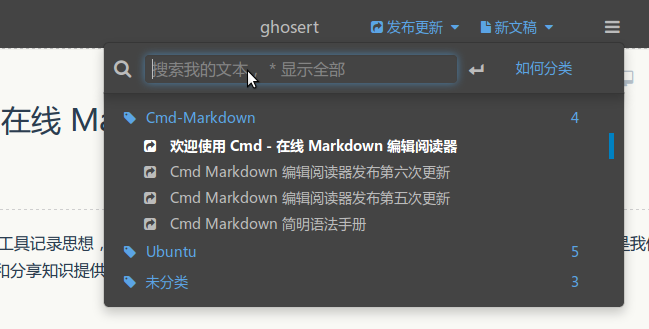
Tagged documents are organized by tag in the [File List] (Ctrl+Alt+F). You can browse with the keyboard or mouse, or search for title keywords in the search text box of the [File List] to filter documents, as shown below:
10. Publishing and sharing documents
While you use Cmd Markdown to record, create, organize, and read documents, we not only hope it serves as a powerful tool, but also that your thoughts and knowledge — along with a high-quality reading experience — can be shared with like-minded people through this platform, thereby encouraging more people to come here to record and share their thoughts and knowledge. Try clicking (Ctrl+Alt+P) to publish this document to your friends!
Thank you once again for taking the time to read this welcome page. Click (Ctrl+Alt+N) to start writing a new document! We hope you enjoy recording, reading, and sharing here!
Author @ghosert July 07, 2016